
THE DOOR TOOL SETTINGS
Completion requirements
Go through the activity to the end
LEAF
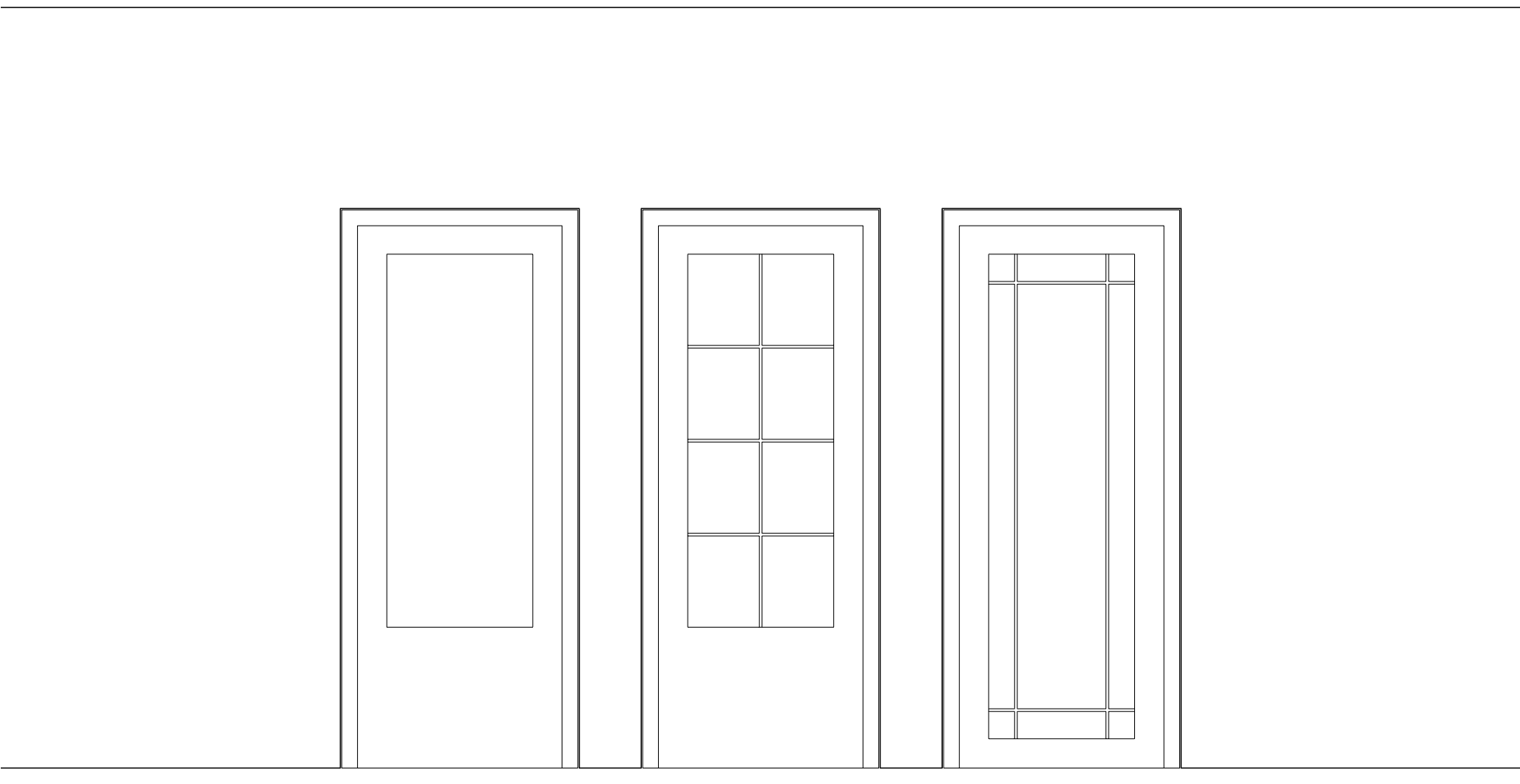
Solid / Flush: With this selection, you can include vision panels in the following shape options.
- Square
- Rectangle
- Circle
- Oval

Click to enlarge
Click to enlarge
Glass / Glazed: With this selection, you can include muntins / glazing bars with the following style options.
- Colonial / Georgian (shown center)
- Prairie (shown right)
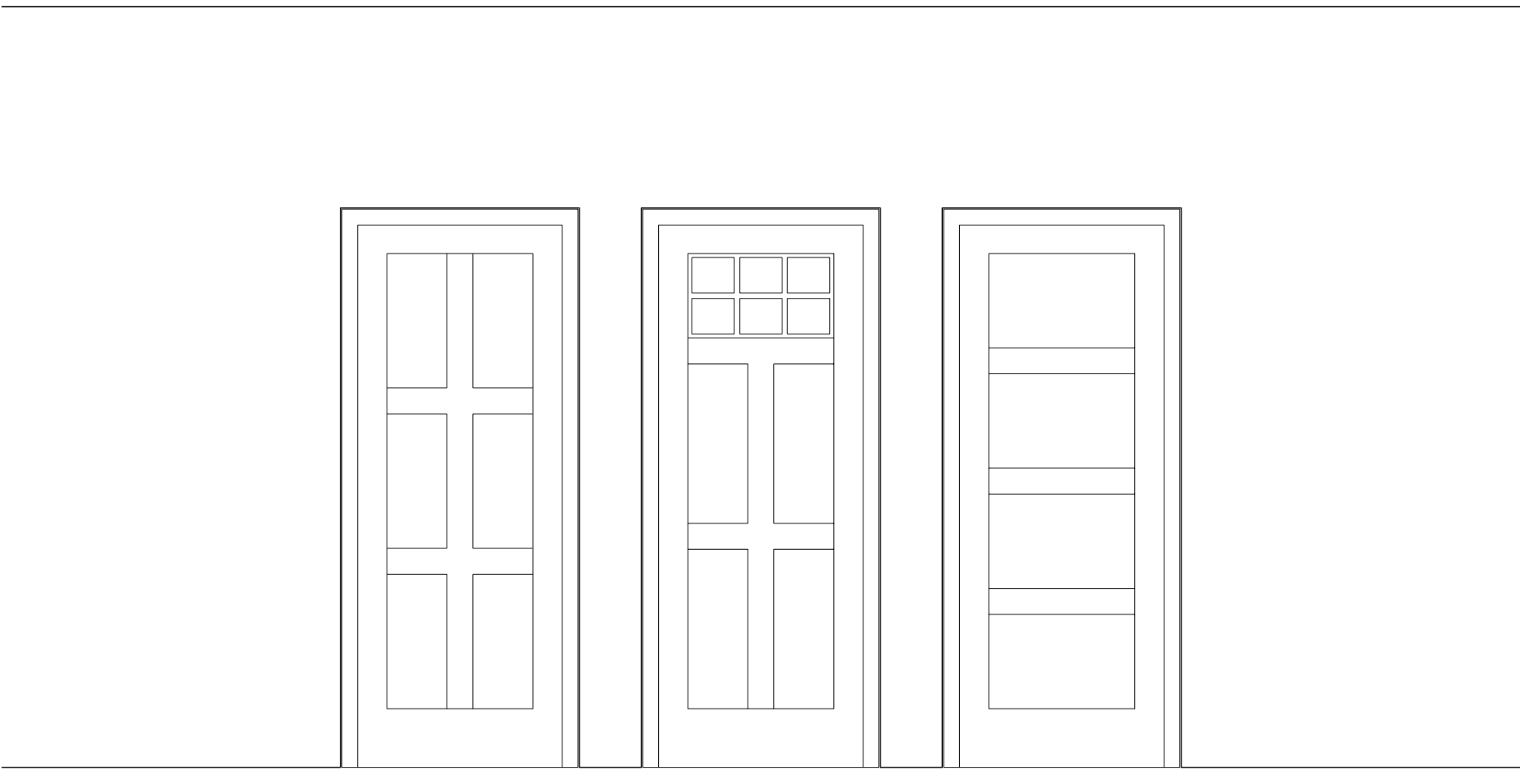
Panel:
With this selection, you can include glazing in the top panels and choose to add muntins / glazing bars to those as well.
Click to enlarge
Click to enlarge
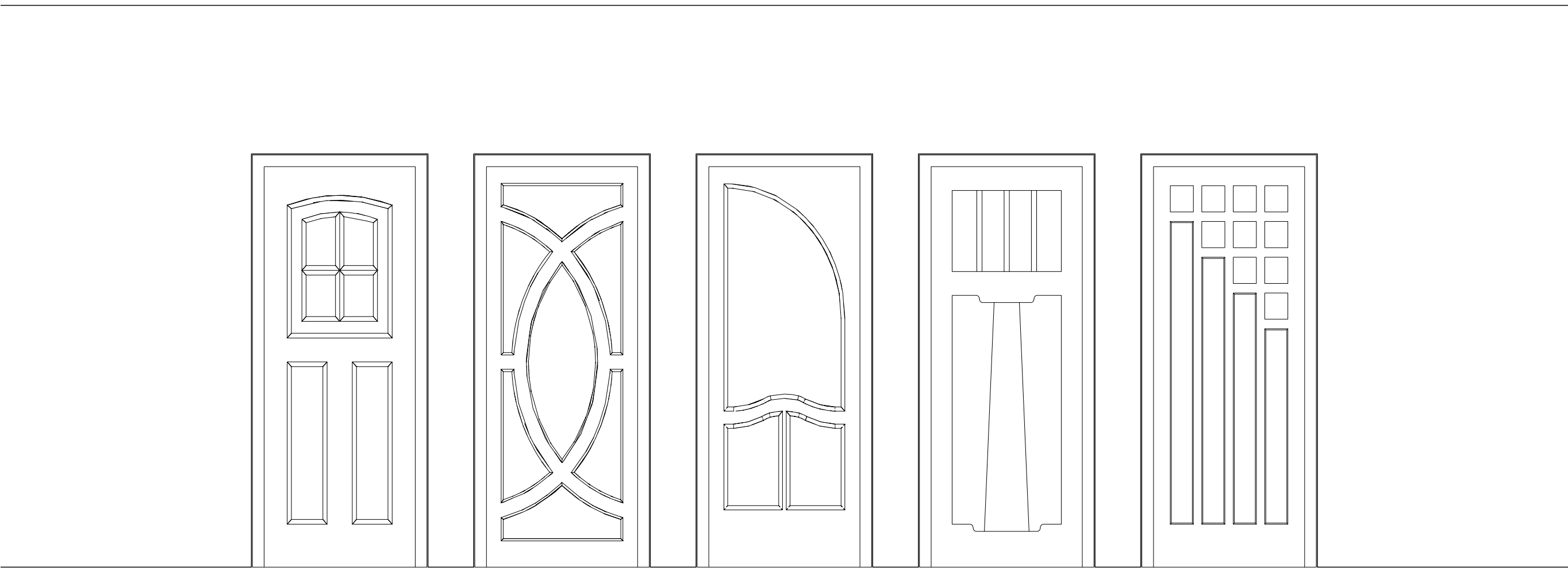
Custom: This selection allows you to include a custom leaf. These custom leaf options allow for more complex leaf designs and are 3D symbols stored in your resource libraries.
ⓘ For resource managers: Copy the existing Custom Leaves file from the application folder (Libraries > Defaults > Door - Custom Leaves) to your workgroup folder, then duplicate and edit the leaves within to create your own series of custom leaf symbols. This is a time-saving alternative to creating these resources from scratch.