Introduction to Referencing
Completion requirements
View
Go through the activity to the end
Referencing Terminology
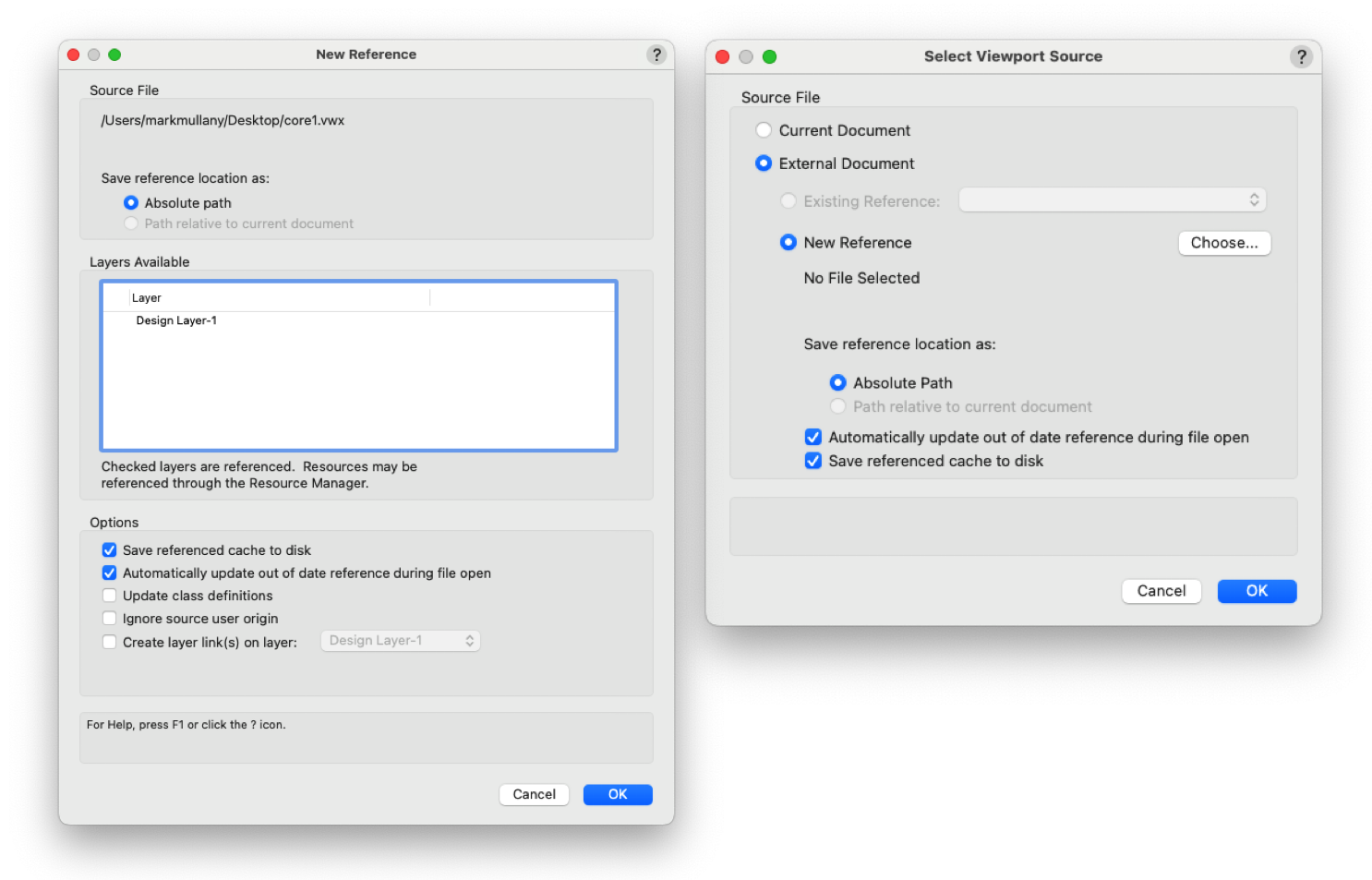 Left: The Layer Import Source Dialogue| Right: The Design Layer Viewport Source Dialogue
Shuttle File
A blank file that external documents are referenced or imported into, cleaned and prepped before the shuttle file is referenced or imported into a live project.
Absolute path
This is when the location of the referenced file with respect to the current file is not going to change, for instance if the file to be referenced is on a server.
Path relative to current document
Use the relative path when the files may be moved to another computer or platform; as long as the relative path between the files remains the same, the reference can be found. If you are going to select this option then both files must be saved on the same disk e.g same usb drive, same external hard drive etc. This is generally the preferred method.
Save reference cache to disk
This option saves a copy of the referenced data with the target file so that if the connection is lost theres is still a version to work from.
Automatically update out of date reference during file open
This option asks Vectorworks to update the reference every time the file is opened. You will always start the day with the latest version but it may increase opening times.
Update class definitions
If checked classes with the same name in both files will take the attributes of the Source file, if unchecked they will remain as defined in the target file.
Ignore source user origin
When checked the referenced objects are positioned in the target file based on the internal origin of the source file, ignoring any custom user origin that may have been set in the source (master) file. This means that if the user origin in the source file changes, the location of referenced objects in the target file will not change-they remain fixed relative to the internal origin.
When unchecked: The referenced objects are positioned relative to the user origin of the source file. If the user origin in the source file changes, the position of the referenced objects in the target file will also shift accordingly.
Create layer link(s) on layer
Layers are independent of each other. Each design layer has its own scale, view, and render status. In the Vectorworks Fundamentals product, however, a layer link can be created that combines the geometry of several design layers, including referenced layers, onto a single design layer. The linked objects on this design layer display in the same view and scale, and share the same render status. This can then be used to give an accurate depiction of how objects in each layer work together. For example, the various floors of a building can be drawn on separate layers and then linked together into a new layer to form an entire building.
ⓘ In the Vectorworks Fundamentals product, consider using viewports instead of layer links, as they provide a better and easier way to present drawings. In the Vectorworks Design Suite products, layer links have been replaced by design layer viewports.