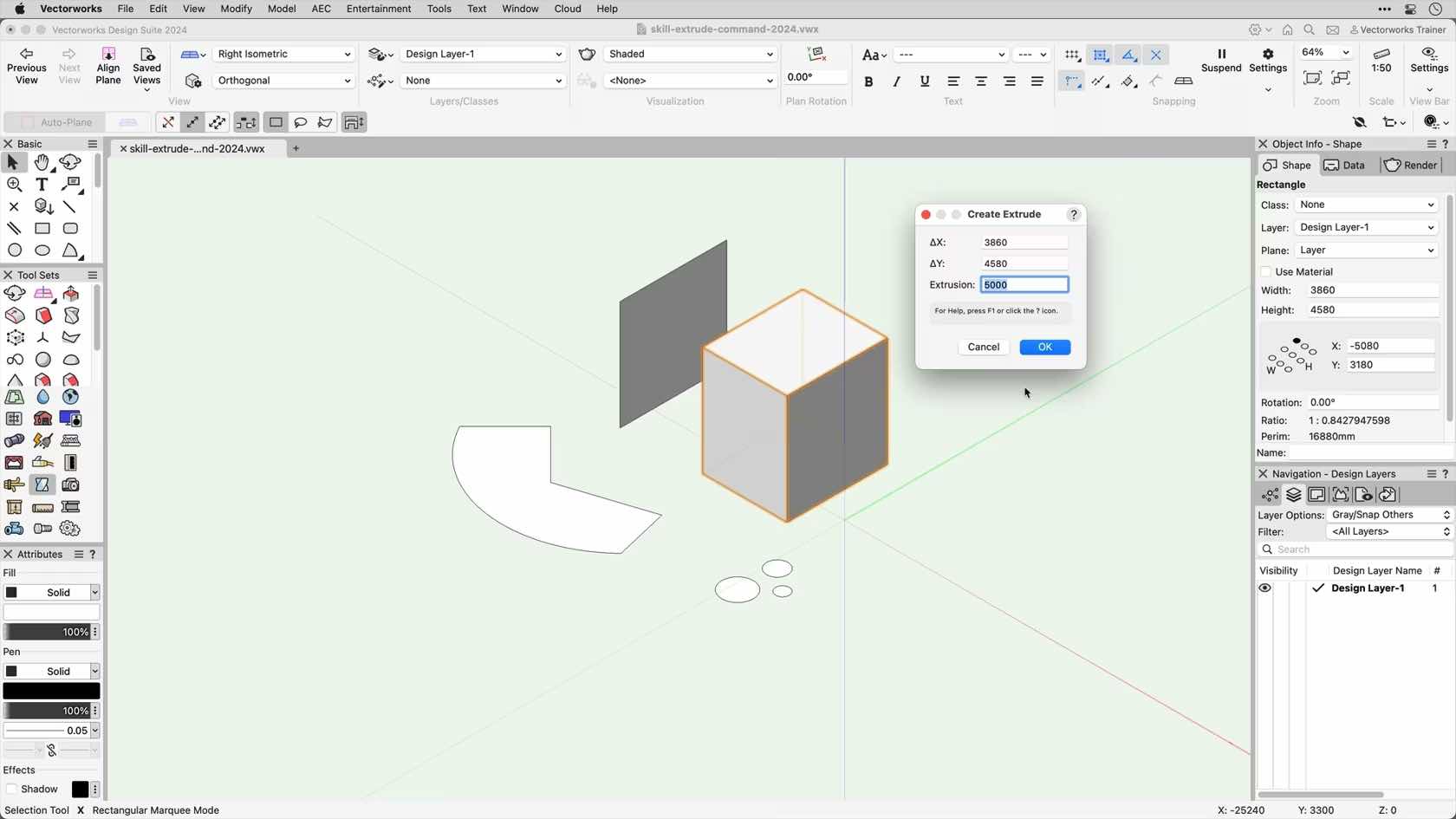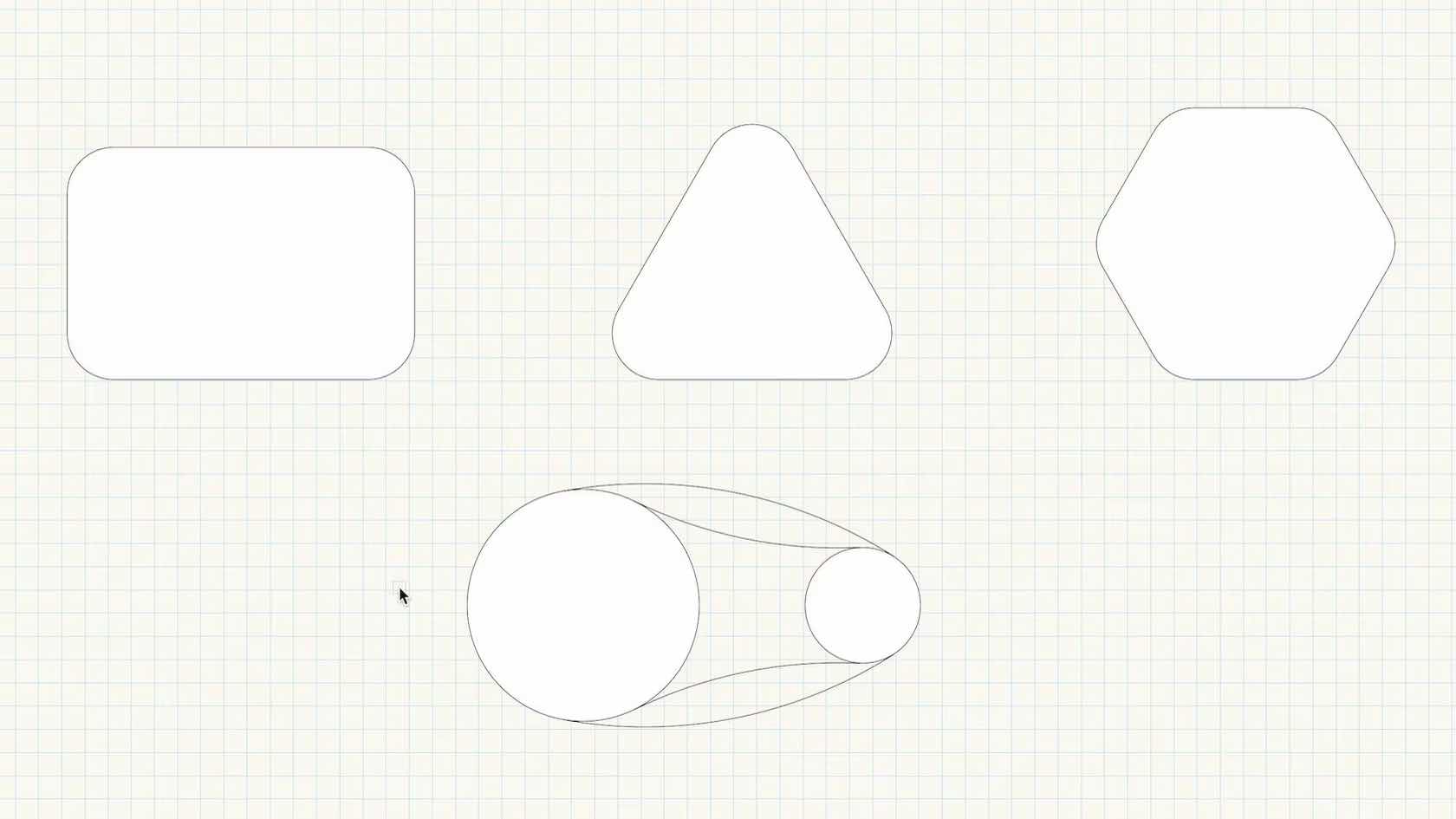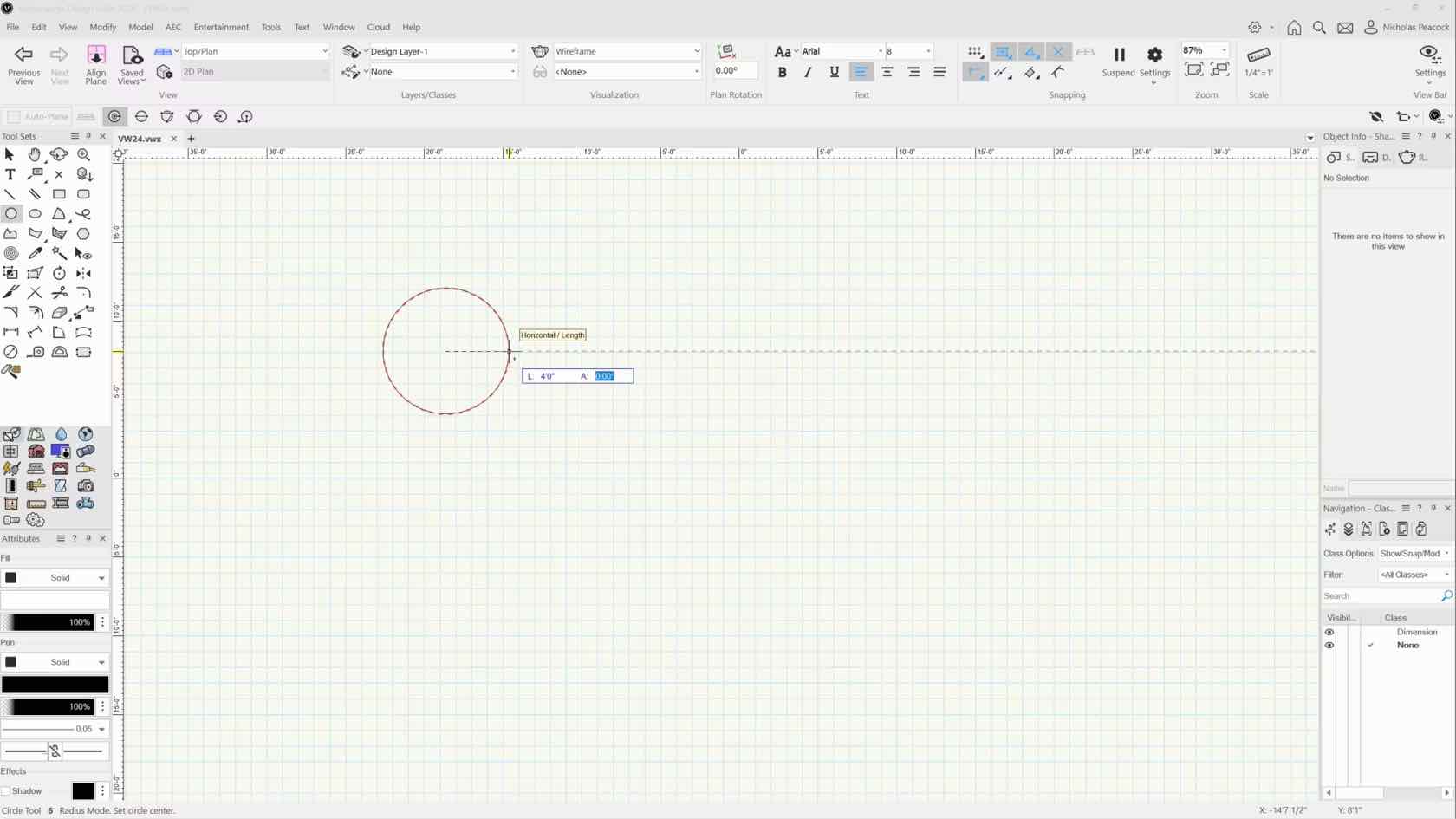
How to access the floating data bar to enter exact dimensions when drawing shapes.

How to access the floating data bar to enter exact dimensions when drawing shapes.


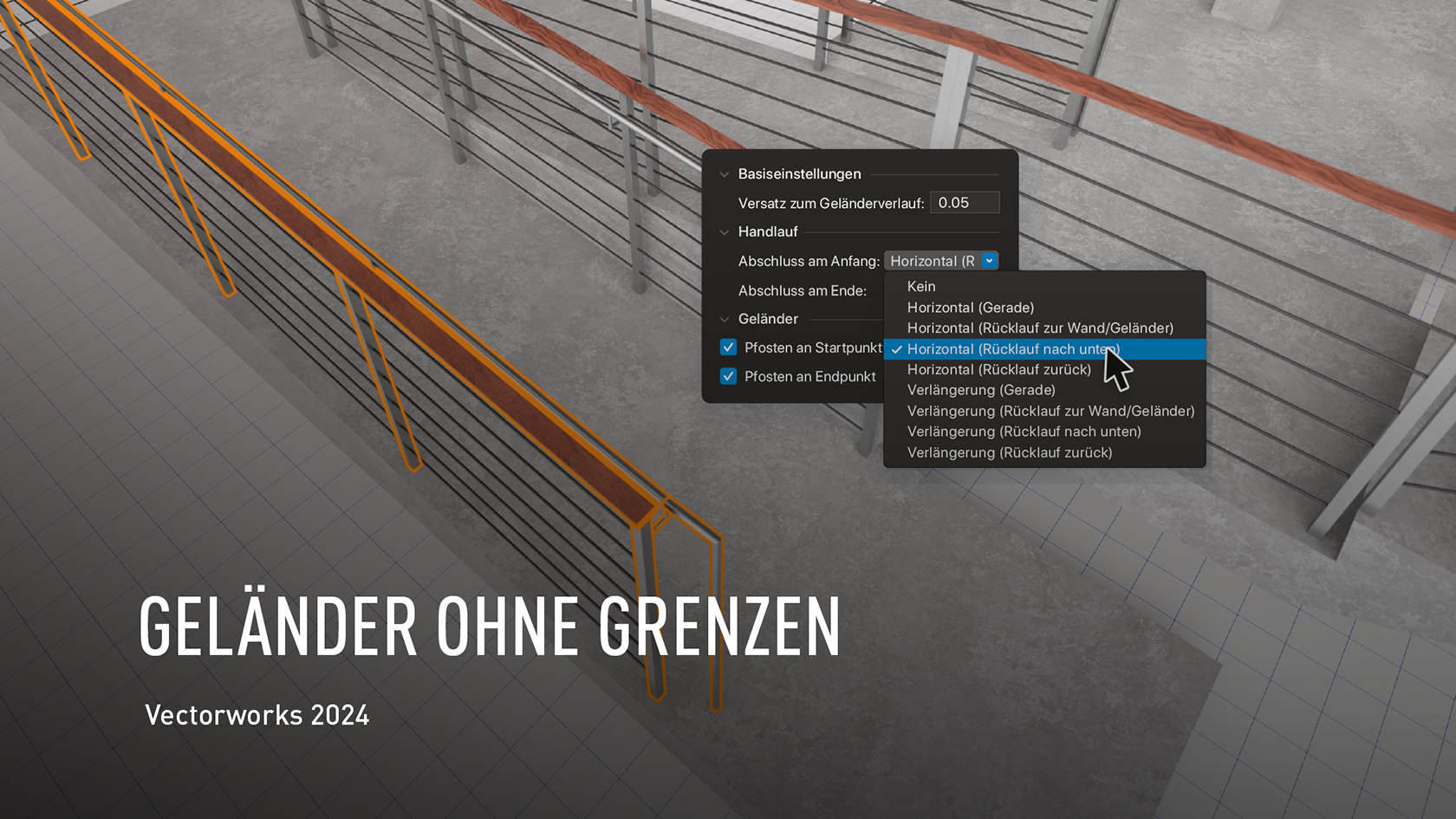
Vectorworks 2024 erlaubt Ihnen, Geländer und Handläufe noch individueller zu konfigurieren. Der flüssige Arbeitsablauf schließt stilisierte Objekte und zusätzliche Erstellungsoptionen ein, die mit anderen Objekten im Modell wie Böden, Decken, Rampen oder Treppen interagieren und sich automatisch an diese anpassen.

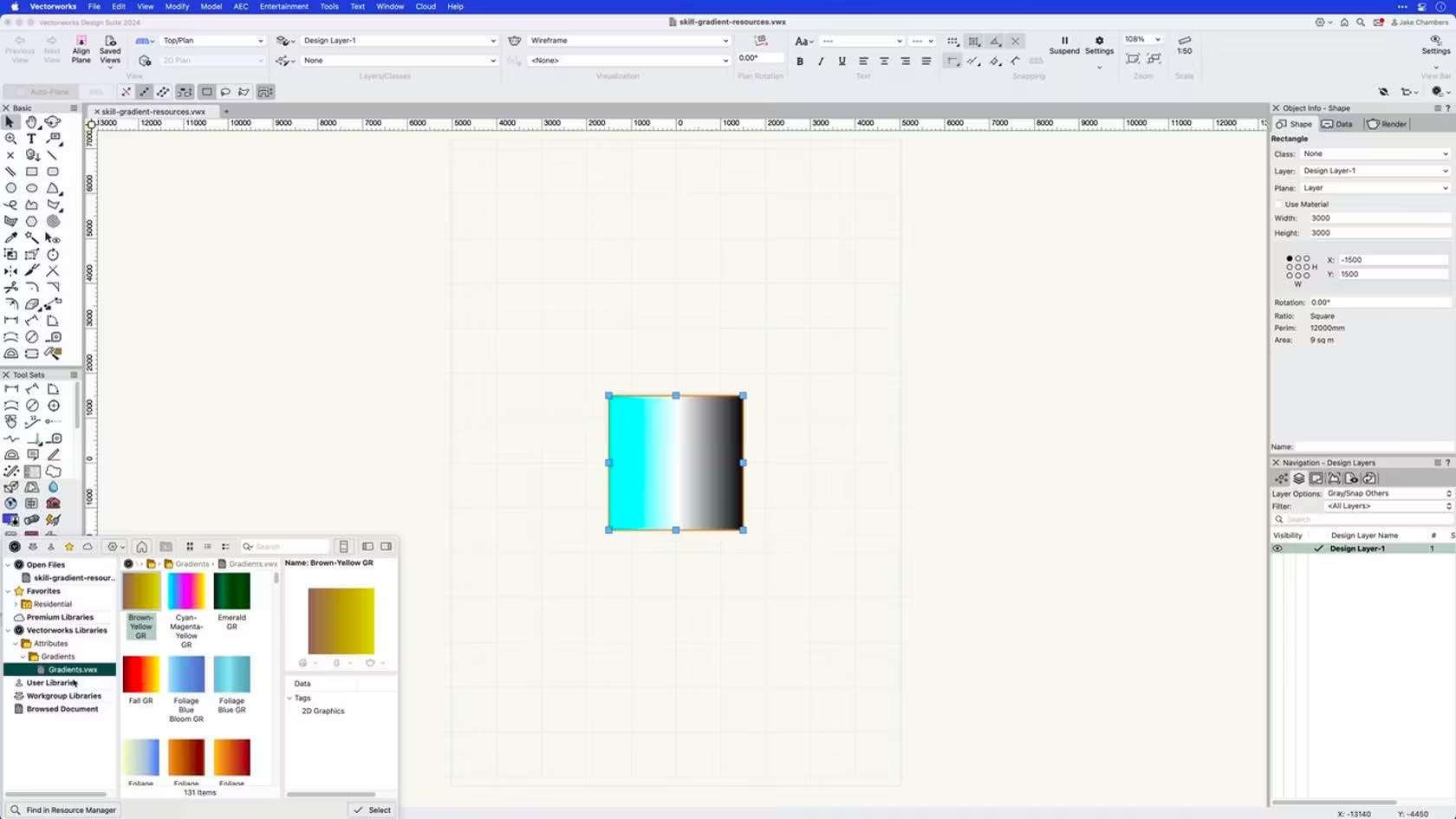
This course demonstrates how to create, apply, and edit gradient resources.

Enhance your workflow with a better way to create custom graphic legends. It’s now easier to align, scale, and alter the dimension of images as well as customize dynamic text. You’ll also be able to preview changes in sorting and class visibility.

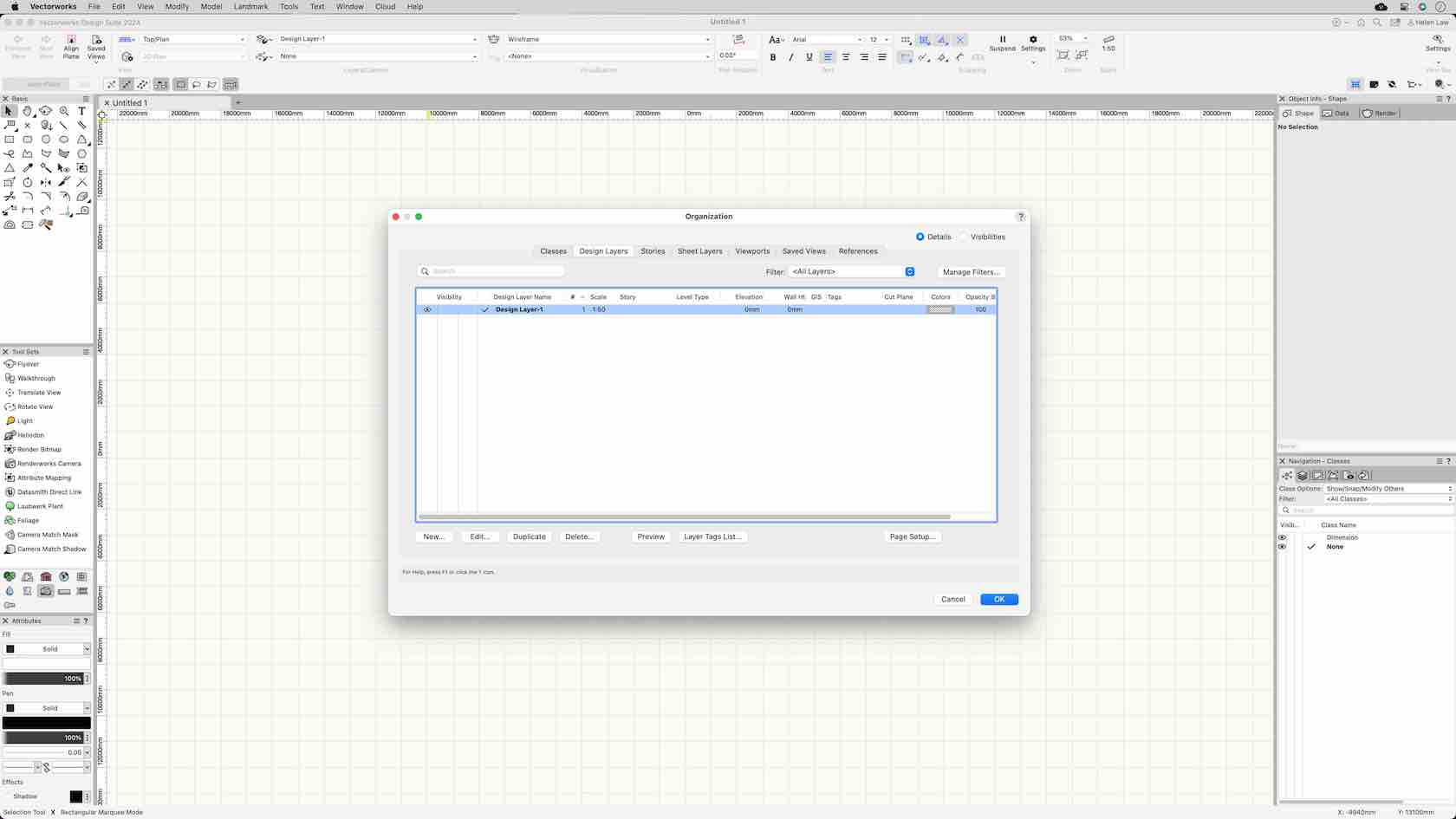
In this course, we will be discussing the grid settings and grid snapping in Vectorworks.

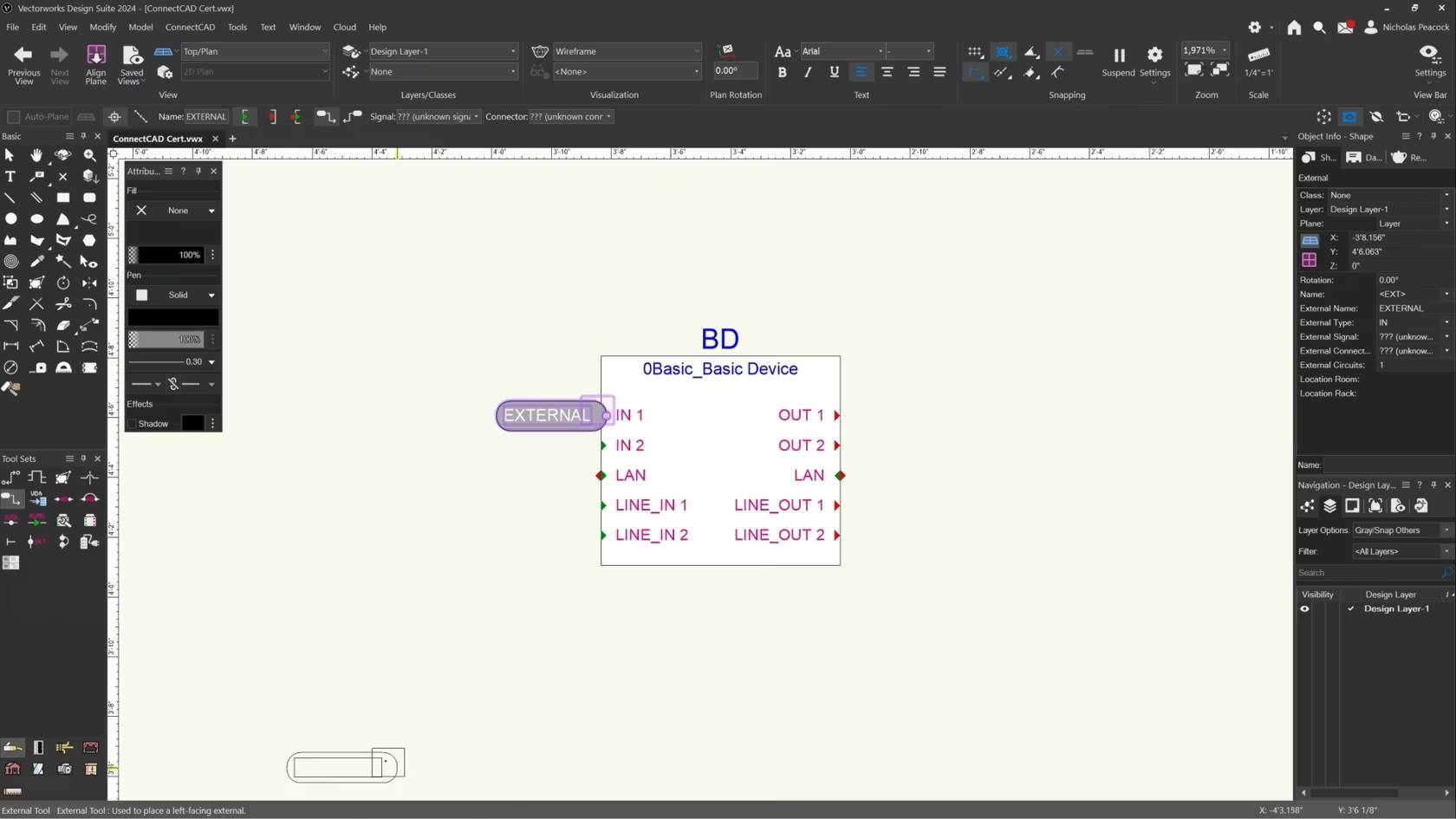
Entdecke in unserem Webinar die grundlegenden Funktionen von ConnectCAD – dem leistungsstarken Modul für Vectorworks, das speziell für die effiziente Planung von Signalflüssen entwickelt wurde. Erfahre, wie ConnectCAD die Signalflussplanung revolutioniert und nahtlos in Vectorworks integriert ist, und entdecke die benutzerfreundlichen Funktionen, die Deine Arbeitsabläufe optimieren.
(Für Version 2024)

The guardrail tool enables you to draw a guardrail which has both 2D and 3D representation. This video demonstrates how to draw a guardrail and set the preferences via the tools preferences button and also how to make changes via the object info palette after placement.


This video will demonstrate how to create a hanging position, and how to use it in your rigging system.

This Video explains and demonstrates the modes of the Hardscape tool.


This Video will show the function of the site modifer configuration within the hardscape object.

This Video will show what makes up a Hardscape Style.

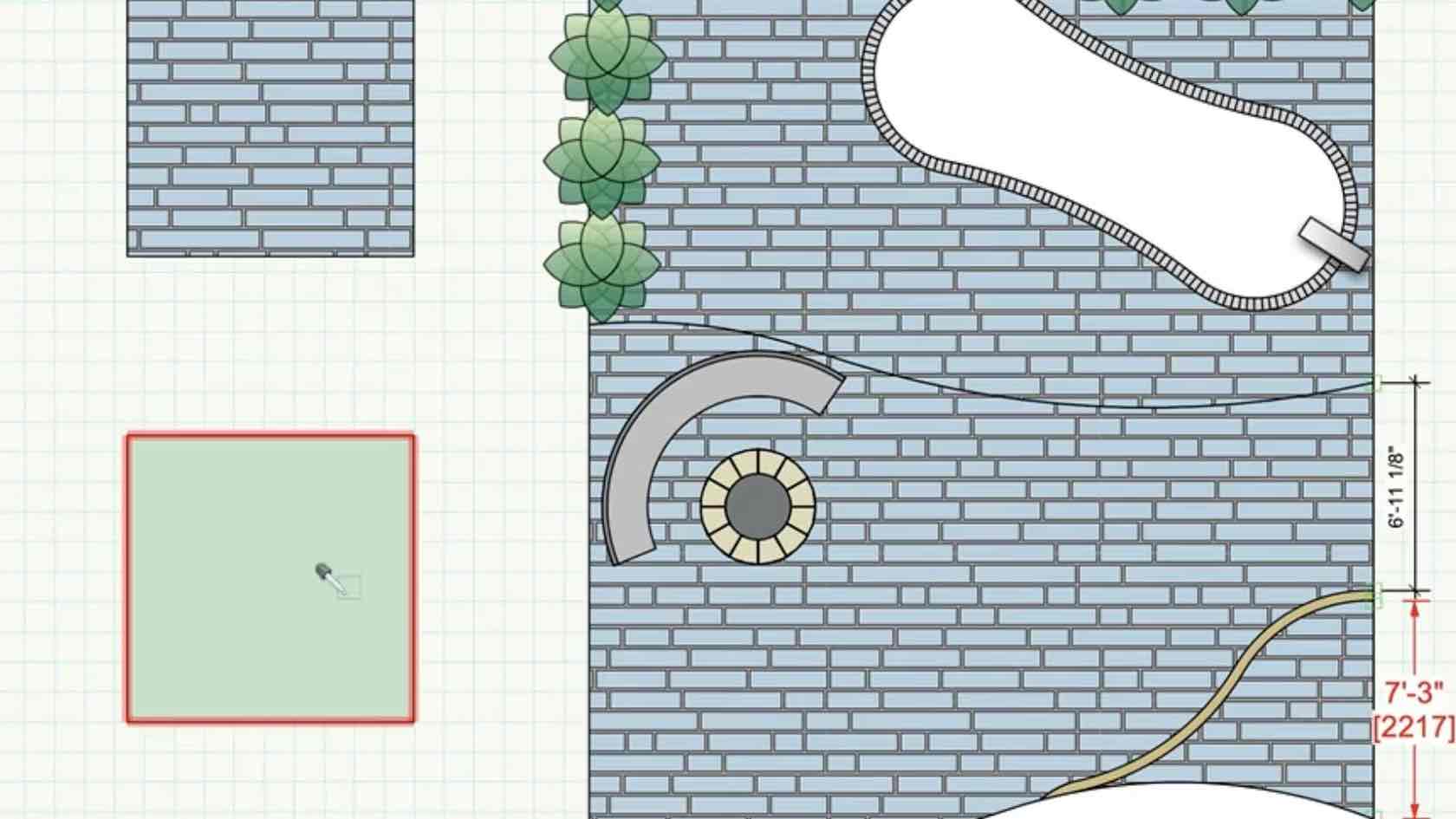
This course demonstrates how to create, apply, and edit Associative and Non-associative Hatches using the Resource Manager and the Hatch command.

In this video we look at the Heliodon tools preferences and how to place a Heliodon into a project.


Discover how to use the Heliodon to create Solar Animations to use for Sun and Shade analysis to help aide your design process.

This video will introduce us to the hoist origin tool.