








Welcome to the Academic Lighting Learning Path series. In this set of six videos, you’ll learn how to use Vectorworks Spotlight to draft a professional light plot, add accessories such as top hats, work with data and DMX, and see how lights are focused within the software. You’ll also discover how to prepare your light plot for publishing on a sheet layer and explore presentation techniques and previsualization.
Originally created as a single two-and-a-half-hour training session by our trainer, Michael Sharon, this course has been divided into six manageable segments—each about thirty minutes long. While the training assumes a basic understanding of Vectorworks, beginners can still follow along successfully.
To help you work alongside the videos, the lighting and scenic design files used in the demonstrations have been included as part of the course.
Please Note: This is not a course on lighting design theory, but a focused guide on using the Spotlight tools inside Vectorworks. All demonstrations are presented in Vectorworks 2025.
Welcome to the Academic Lighting Learning Path series. In this set of six videos, you’ll learn how to use Vectorworks Spotlight to draft a professional light plot, add accessories such as top hats, work with data and DMX, and see how lights are focused within the software. You’ll also discover how to prepare your light plot for publishing on a sheet layer and explore presentation techniques and previsualization.
Originally created as a single two-and-a-half-hour training session by our trainer, Michael Sharon, this course has been divided into six manageable segments—each about thirty minutes long. While the training assumes a basic understanding of Vectorworks, beginners can still follow along successfully.
To help you work alongside the videos, the lighting and scenic design files used in the demonstrations have been included as part of the course.
Please Note: This is not a course on lighting design theory, but a focused guide on using the Spotlight tools inside Vectorworks. All demonstrations are presented in Vectorworks 2025.
This quiz tests your understanding of the essential setup processes covered in Section 1 of the Academic Lighting Design Learning Path. You’ll be assessed on how to organize your Vectorworks file, work with lighting symbols, and apply tools for numbering, aligning, and positioning lighting devices within your drawing.
Successful completion demonstrates your ability to establish a clean, well-structured file and accurately arrange lighting devices—skills that form the foundation for the design tasks in later sections.
This quiz measures how well you understand the concepts introduced in Section 2 of the Academic Lighting Design Learning Path. Questions focus on drawing and configuring lighting pipes and booms, working with different fixture types, adding and managing accessories like gobos and top hats, using Find and Modify to update fixture attributes, and interpreting Schematic Views in relation to the 3D model.
Successfully completing this quiz demonstrates that you can confidently set up lighting positions, enhance fixtures with accessories and color, and use Schematic Views to maintain accurate visualization and control of your Vectorworks Spotlight designs.
This quiz measures how well you understand the concepts introduced in Section 3 of the Academic Lighting Design Learning Path. Questions focus on using Hanging Positions with auto-numbering, applying Spotlight Numbering for both unit and DMX values, and adjusting numbering when fixtures are added or changed in your plot.
You will also be assessed on creating and configuring Label Legends for clear documentation, and on using functions like DMX Patch and Find and Modify together so address and dimmer information appears correctly on your drawings.
This quiz measures how well you understand the concepts introduced in Section 4 of the Academic Lighting Design Learning Path. You’ll be assessed on your understanding of how to adjust fixture orientation, focus Lighting Devices, define focus points, and more.
Successful completion demonstrates your ability to precisely focus lighting designs in Vectorworks Spotlight.
This quiz measures how well you understand the concepts introduced in Section 5 of the Academic Lighting Design Learning Path. You’ll be assessed on how effectively you can document and analyze your lighting design using Vectorworks Spotlight’s reporting and visualization tools. Questions focus on building and organizing an Equipment Summary Key, modifying the Spotlight Channel Hookup worksheet to better display DMX data, and applying Data Visualization to viewports so fixture information is clearly communicated on your plots.
Successful completion demonstrates the ability to produce clear, data‑driven documentation that accurately supports your lighting design.
This quiz measures how well you understand the concepts introduced in Section 5 of the Academic Lighting Design Learning Path. You’ll be assessed on presentation and previsualization techniques in Vectorworks Spotlight. Questions cover setting up Renderworks cameras, adding atmospheric effects like fog to enhance realism, controlling fixture visibility on a per-viewport basis, and understanding the tradeoffs between different rendering modes.
With the successful completion of this final section, you demonstrate proficiency in transforming your technical lighting plot into engaging visual presentations that communicate your design intent effectively.
In this first section, you’ll learn how to set up a well-organized Vectorworks drawing—starting with a brief introduction to layers and classes to help keep your project structured from the outset. We’ll walk through the basics of using the Resource Manager and explain what a lighting device is within Vectorworks Spotlight.
You’ll practice adding lighting devices to your plot, explore the automatic numbering features for lights, and learn techniques for spacing lights evenly across a truss. This section lays the foundation for both efficient file management and successful lighting design workflows.
In this section, you’ll dive deeper into essential Vectorworks Spotlight tools and concepts surrounding lighting pipes, booms, and schematic views. You’ll begin with a primer video that includes hands-on guidance on drawing a lighting pipe, then move to the main lesson where various types of lighting fixtures—such as conventional lekos, moving wash lights, and strip lights—are introduced.
You’ll practice adding accessories, such as gobos and top hats, to your lights and master the Find and Modify command to add color to your fixtures. Finally, you’ll explore how to work with Schematic Views and understand their relationship to lighting in your Vectorworks model, enabling more precise visualization and control of your design.
In this section, you’ll build critical skills for organizing and managing lighting data in Vectorworks Spotlight. First, you’ll learn how to work with Hanging Positions, use auto-numbering tools, and apply Spotlight Numbering to streamline your workflow. Next, the lesson covers patching lighting fixtures to ensure every device is accurately addressed within your plot.
You’ll then discover how to create and use Label Legends—an essential part of clear light plot documentation—and understand their role in communicating fixture details. To conclude, you’ll receive a demonstration of the DMX Patch command and window, which will help you understand how DMX data integrates into your design for efficient control and technical accuracy.
In this section, you’ll explore multiple methods for focusing lights within Vectorworks Spotlight. You’ll begin by learning how to adjust fixture orientation using the Pan and Tilt sliders in the Object Info Palette (OIP) and see how to focus lights interactively in real time. The training then covers the Focus Lighting Devices command, which enables you to efficiently focus groups of lights simultaneously.
You’ll continue by practicing how to focus lights along a line or individually, using the Focus Point tool for added flexibility. Visualizing your design becomes easier as you use the Draw Beam feature to see light beams in your drawing. You’ll also discover how shutters operate on lighting devices and review several techniques for replacing fixtures within your plot, giving you greater flexibility and precision in your lighting designs.
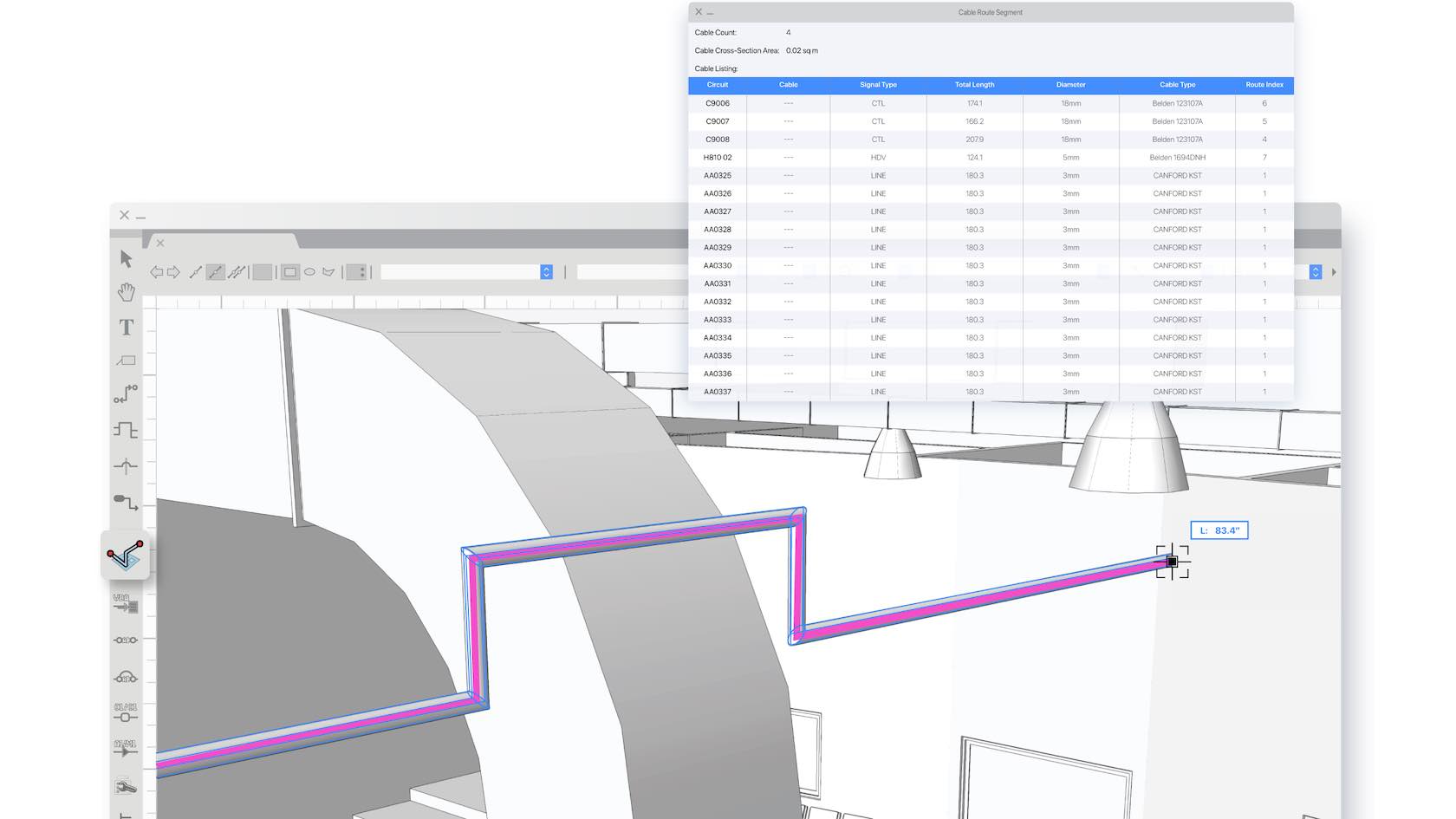
In this section, you’ll master advanced documentation and data skills to elevate your light plots in Vectorworks Spotlight. First, you’ll discover how to use the Equipment Summary Key to create clear, effective instrumentation legends for your designs. The session then guides you through generating a Channel Hookup worksheet using Vectorworks’ built-in reporting tools, enabling streamlined organization of fixture and channel data.
Next, you’ll learn how to use Worksheets to directly manipulate objects in your model and customize worksheet displays to highlight the data most relevant to your project. The lesson also covers working with Viewports and Sheets, showing you how to place your drawings into layouts and use annotations—such as notes, dimensions, and rulers—to mark up and clarify your plots. You’ll also practice creating Sections from Viewports for detailed callouts, ensuring your documentation is clear and comprehensive.
Finally, you’ll be introduced to data visualization techniques, which help you analyze, highlight, and communicate key information right on your drawings. The section concludes with a walkthrough on generating labels from your worksheet data, reinforcing effective connections between your digital documentation and the physical production process.
In this final section, you’ll learn how to bring your lighting design to life through professional presentation techniques in Vectorworks Spotlight. First, you’ll discover how to create renderings of your light plot using Shaded rendering, which helps you visualize your designs in a realistic context. The Camera tool is then introduced, showing you how to set up custom views and place these perspectives onto viewports for organized presentation layouts.
Next, the session walks you through adding atmospheric effects, such as fog, to your renderings for increased realism. You’ll explore the Visualization palette, learning to control lighting—turning fixtures on or off in Shaded mode and on a per-viewport basis—for flexible scene manipulation. The lesson also covers various render modes to enhance your presentation and concludes with an overview of the Showcase previsualization mode, empowering you to preview your lighting design in dynamic and engaging ways.