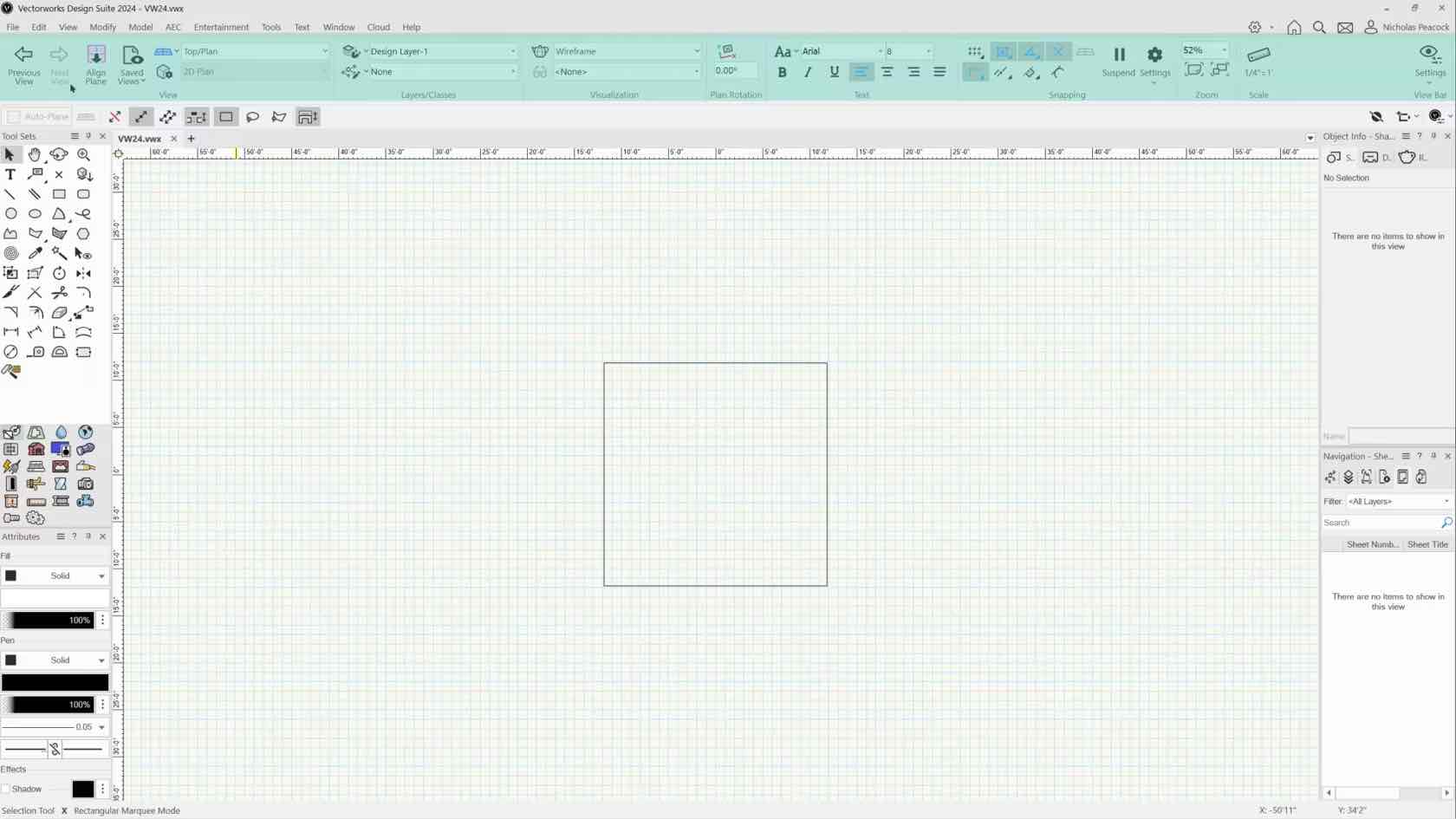
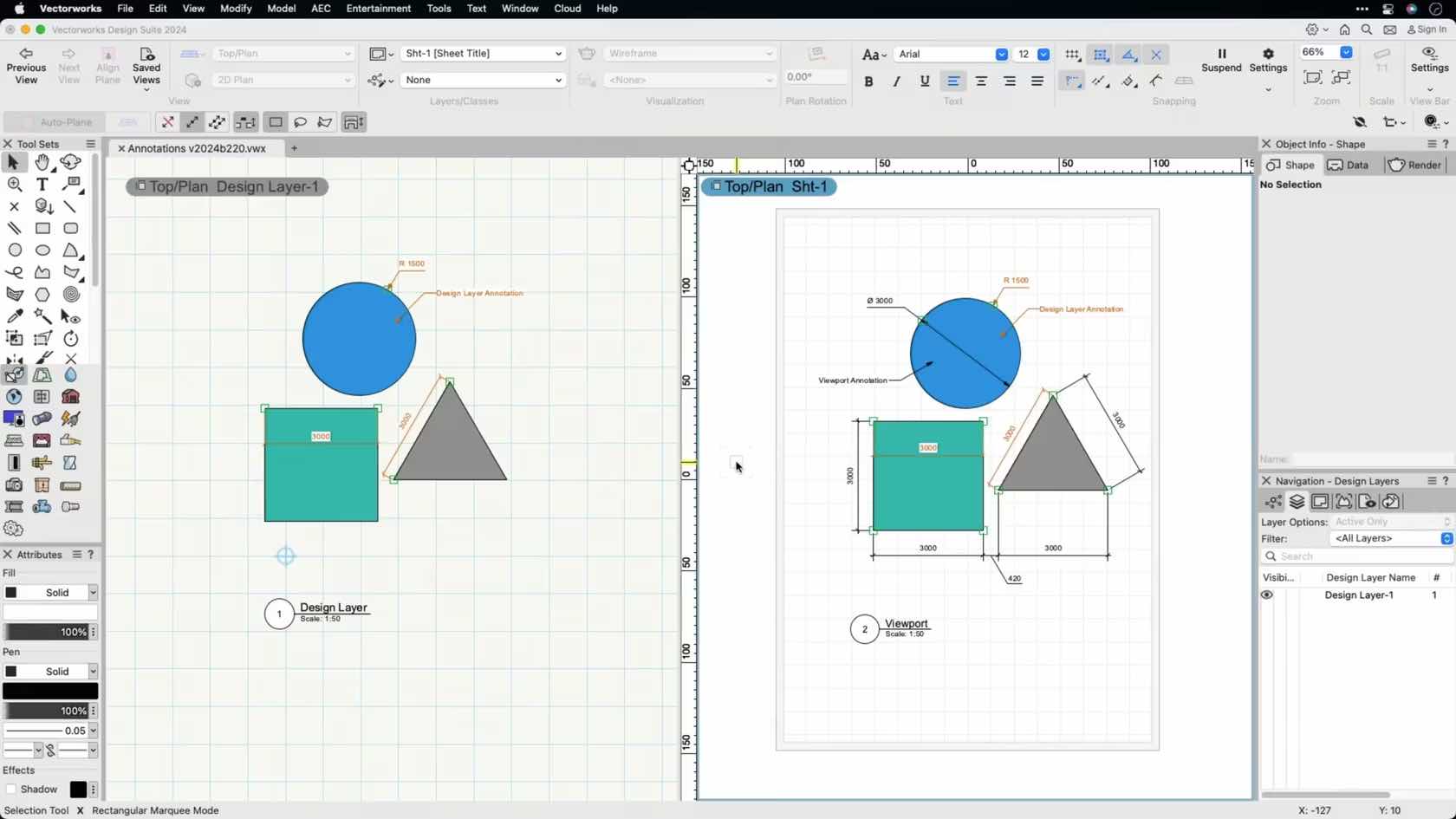
Meistern Sie zielsicher Ihre Aufgaben am Arbeitsplatz mit Vectorworks. Egal, ob Sie ein Neuling oder ein erfahrener Vectorworks-Anwender sind, unser Zertifizierungsprogramm bietet Ihnen Möglichkeiten, weiter zu lernen und Ihre Fähigkeiten in Vectorworks unter Beweis zu stellen. Die Zertifizierung für Einsteiger umfasst mehrere Zertifikate zu verschiedenen Themenbereichen. Mit der Vectorworks-Zertifizierung EINSTEIGER - ERSTE SCHRITTE BESCHRIFTEN, BEMAßEN, DRUCKAUSGABE setzen Sie Ihre Lernreise fort.
Diese Zertifizierung enthält zahlreiche Videos, die Ihnen das notwendige Wissen zum sicheren Umgang mit den Werkzeugen in Vectorworks vermittelt. Nach dem Durcharbeiten sind Sie bereit für die Prüfung.
Die Zertifizierungsprüfung bestehend aus 50 Fragen ist mit einer Punktzahl von mindestens 40 Punkten bestanden. Durch das Bestehen der Vectorworks-Prüfung EINSTEIGER - ERSTE SCHRITTE BESCHRIFTEN, BEMAßEN, DRUCKAUSGABE und den Erhalt des Zertifikates zeigen Sie Arbeitgebern und Kunden, dass Sie über ein fundiertes Vectorworks Wissen zu den 3D-Werkzeugen zum 3D Modellieren und Bearbeiten verfügen.
Wir empfehlen dringend, den gesamten Vorbereitungskurs vor der Prüfung durchzuarbeiten. Vorbereitungskurs und Prüfung zur Vectorworks-Zertifizierung EINSTEIGER - ERSTE SCHRITTE BESCHRIFTEN, BEMAßEN, DRUCKAUSGABE sind für unbegrenzte Zeit kostenlos verfügbar. Wenn Sie das Gefühl haben, die behandelten Themen bereits zu beherrschen, können Sie auf dieser Seite unterhalb der Lerneinheiten direkt zur Prüfung springen. Ihr Zertifikat ist nach bestandener Prüfung 3 Jahre gültig. Sobald Sie die Prüfung bestanden haben, können Sie Ihr persönliches Vectorworks- Zertifikat und -Siegel herunterladen und anzeigen. Sie werden 6 Monate vor Ablauf Ihrer Zertifizierung benachrichtigt und erhalten Updates für Ihre Weiterbildung. Willkommen beim Vectorworks Zertifizierungsprogramm!